User Guide
TAskbook User Guide
TAskbook is a desktop app for managing students, optimized for use via a Command Line Interface (CLI) while still having the benefits of a Graphical User Interface (GUI). If you can type fast, TAskbook can get your student management tasks done faster than traditional GUI apps.
Table of Contents
- TAskbook User Guide
- Table of Contents
- Quick start
- Application Views
-
Features
- Command - Viewing help:
help - Command - Clearing all entries:
clear - Command - Exiting the program:
exit - Student Commands
-
Tutorial Commands
- Command - Adding a tutorial:
tutorial add - Command - Listing all tutorials:
tutorial list - Command - Finding a tutorial:
tutorial find - Command - Deleting a tutorial:
tutorial delete - Command - Adding a student to tutorial:
tutorial add-student - Command - Deleting a student from tutorial:
tutorial delete-student
- Command - Adding a tutorial:
- Assignment Commands
- Submission Commands
- Attendance Commands
- Export Commands
- Command - Viewing help:
- Saving the data
- Editing the data file
- FAQ
- Known issues
- Command Summary
- Troubleshooting
- Acknowledgements
Quick start
-
Ensure you have Java
17or above installed in your Computer.
Mac users: Ensure you have the precise JDK version prescribed here. -
Download the latest
.jarfile from here. -
Copy the file to the folder you want to use as the home folder for your TAskbook.
-
Open a command terminal,
cdinto the folder you put the jar file in, and use thejava -jar taskbook.jarcommand to run the application.
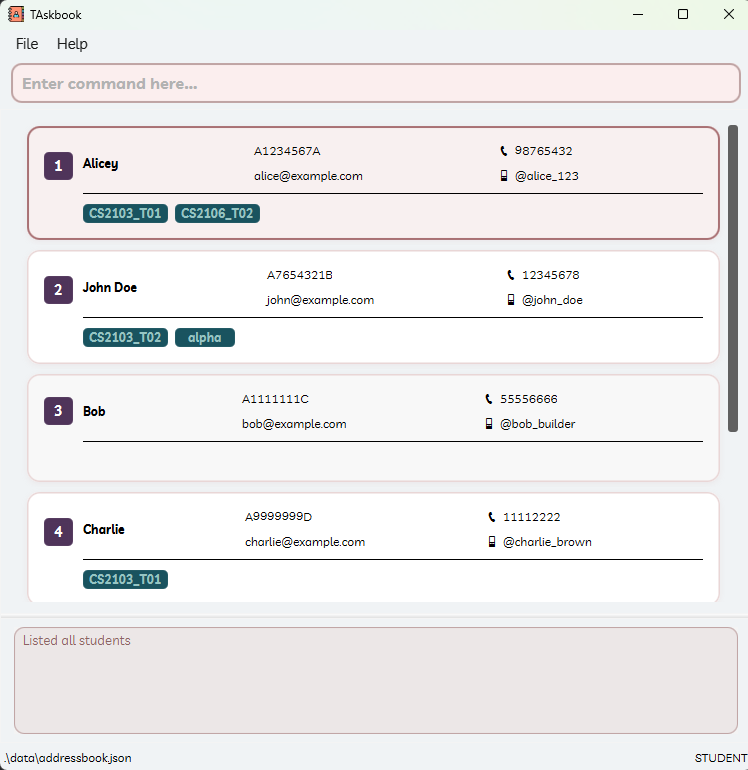
A GUI similar to the below should appear in a few seconds. Note how the app contains some sample data.
-
Type the command in the command box and press Enter to execute it. e.g. typing
helpand pressing Enter will open the help window.
Some example commands you can try:-
list: Lists all students. -
add n/John Doe i/A0123456Z p/98765432 e/johnd@example.com h/@john_doe: Adds a student namedJohn Doeto the Address Book. -
delete 1: Deletes the 1st student shown in the current list. -
clear: Deletes all students. -
exit: Exits the app.
-
-
Refer to the Features section below for details of each command.
Application Views
TAskbook operates in distinct views, which determine the information shown in the UI and what commands are available. The current view is indicated in the bottom-right corner of the application window.
 Note about views:
-
Some commands are only available in specific views. If a command is entered in the wrong view, the application will automatically switch to the correct view.
-
The current view is remembered across reboots of the application.
-
The terms “view” and “mode” are used interchangeably in TAskbook. They refer to the same concept.
-
For command-specific view requirements, please refer to the Features section.
Types of Views
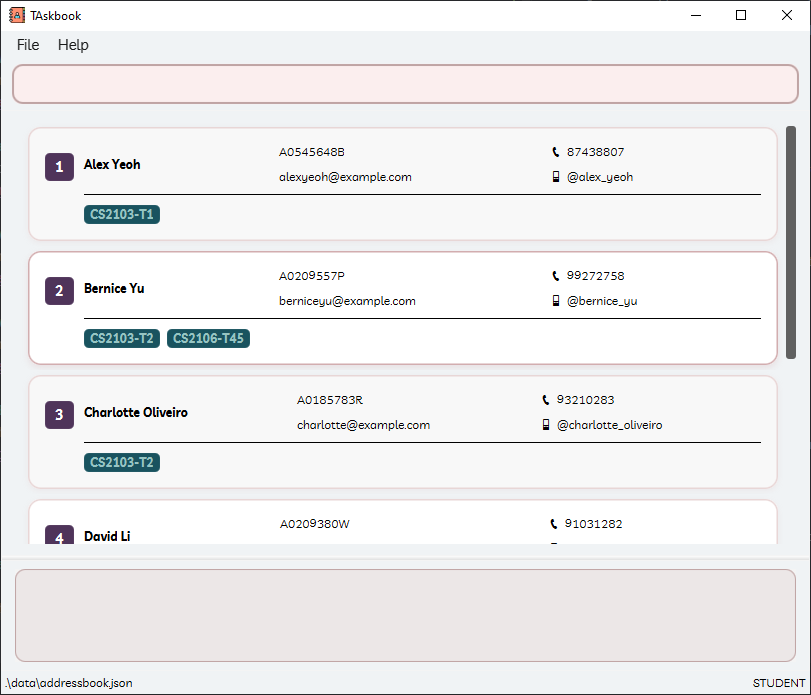
STUDENT view
For managing students and their tutorial enrollment.
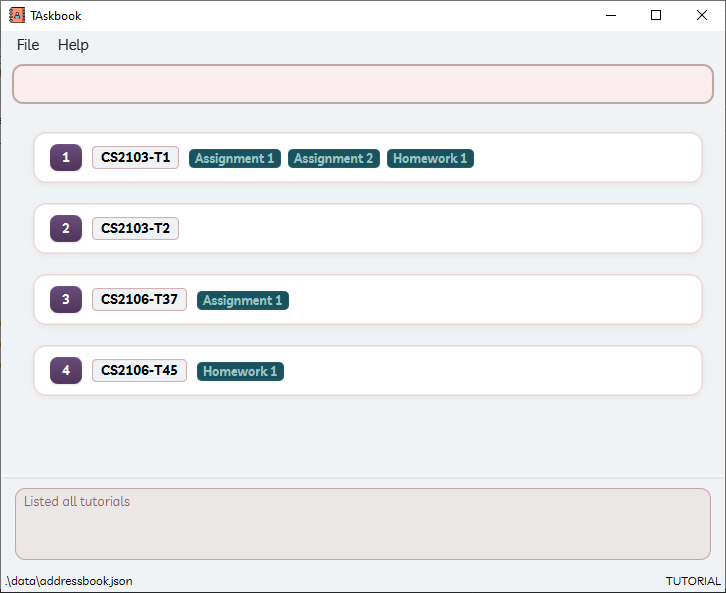
TUTORIAL view
For managing tutorials and their assignments.
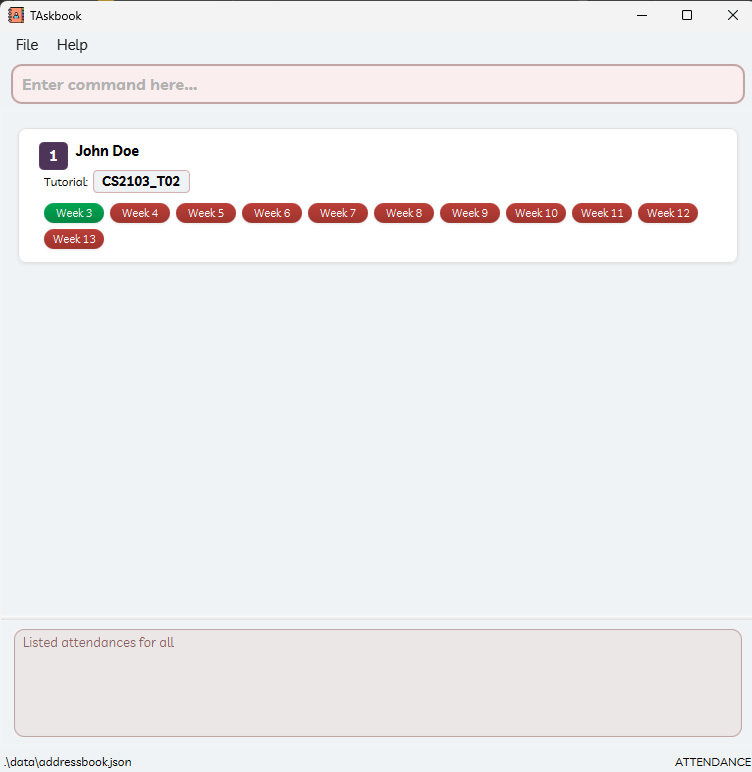
ATTENDANCE view
For tracking student attendance.
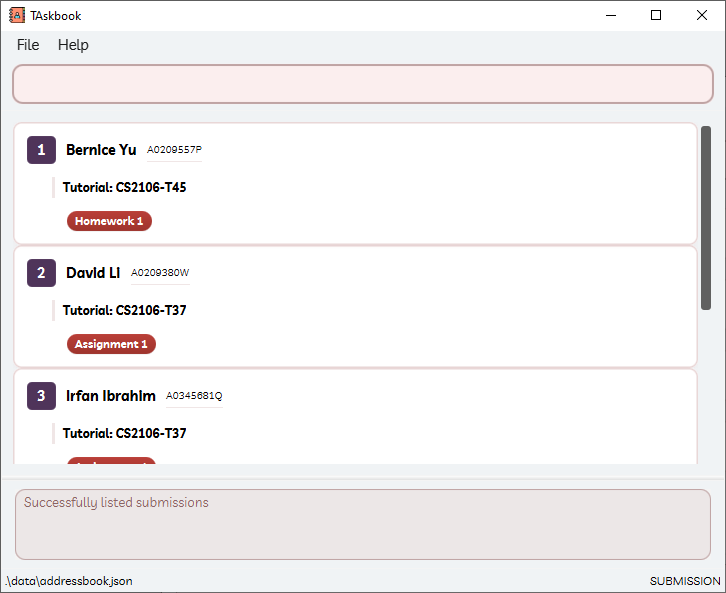
SUBMISSION view
For managing student submissions and their statuses.
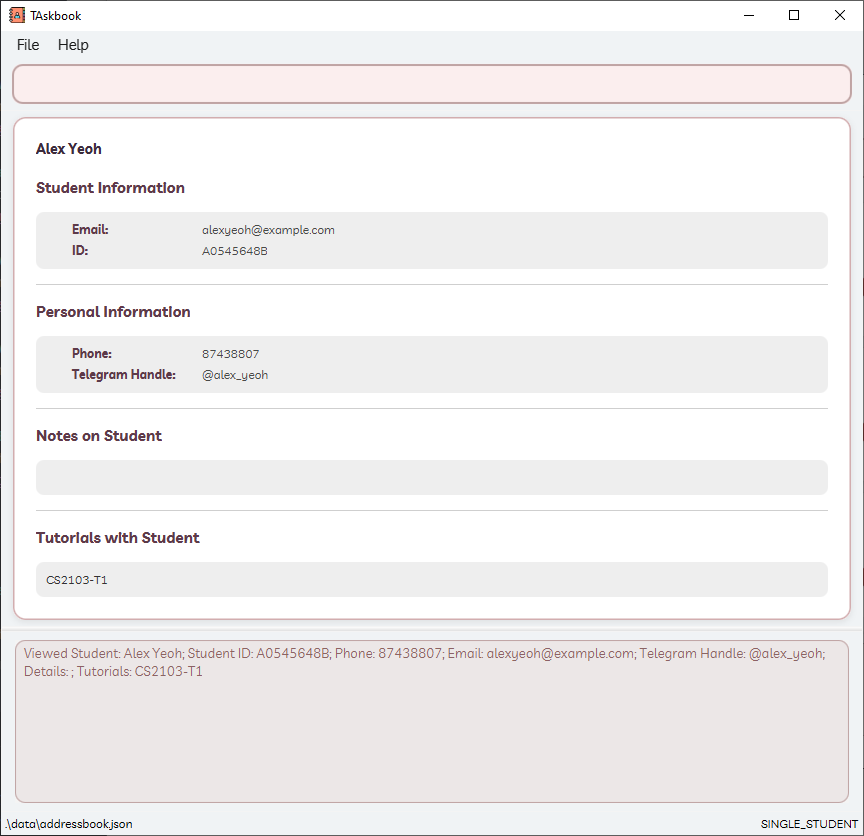
SINGLE_STUDENT view
For viewing comprehensive details of a specific student.
Switching Views
The user can switch between views using the following commands:
| Command | View |
|---|---|
list |
STUDENT view |
tutorial list |
TUTORIAL view |
attendance list |
ATTENDANCE view |
submission list |
SUBMISSION view |
view INDEX |
SINGLE_STUDENT view |
For more information on these commands, please refer to the Features section.
Features
Notes about the command format:
-
Words in
UPPER_CASEare the parameters to be supplied by the user.
e.g. inadd n/NAME,NAMEis a parameter which can be used asadd n/John Doe. -
Items in square brackets are optional.
e.gn/NAME [t/TAG]can be used asn/John Doe t/friendor asn/John Doe. -
Items with
...after them can be used multiple times including zero times.
e.g.[t/TUTORIAL_NAME]...can be used ast/cs2103,t/cs2103 t/cs2040setc. -
Parameters can be in any order.
e.g. if the command specifiesn/NAME p/PHONE,p/PHONE n/NAMEis also acceptable. -
Extraneous parameters for commands that do not take in parameters (such as
help,list,exitandclear) will be ignored.
e.g. if the command specifieshelp 123, it will be interpreted ashelp. -
If you are using a PDF version of this document, be careful when copying and pasting commands that span multiple lines as space characters surrounding line-breaks may be omitted when copied over to the application.
Command - Viewing help: help
Format:
help
Shows a message explaining how to access the help page.

Command - Clearing all entries: clear
Clears all entries from the address book.
Format:
clear
Command - Exiting the program: exit
Exits the program.
Format:
exit
Student Commands
Command - Adding a student: add
Adds a student to the address book.
Format:
add n/NAME i/STUDENT_ID p/PHONE e/EMAIL h/HANDLE [desc/DESCRIPTION]
Parameters:
-
NAME: Alphanumeric characters and spaces only (cannot be blank) -
STUDENT_ID: FormatAXXXXXXX[A-Z]whereXis a number between 0 - 9- cannot be blank, must be unique
-
PHONE: Exactly 8 digits -
EMAIL: Valid email format (e.g., user@example.com) -
HANDLE: Format@telegramhandle(5 - 32 alphanumeric characters (excluding @ symbol), underscores allowed, cannot be blank) -
DESCRIPTION: Can be any length (viewable only viaviewcommand) - There cannot be duplicate students with the same
NAME,STUDENT_ID,PHONE,EMAILorHANDLE.
Examples:
add n/John Doe i/A0123456Z p/98765432 e/johnd@example.com h/@john_doe
Command - Listing all students: list
Shows a list of all students in the address book.
Format:
list
Command - Editing a student: edit
Edits an existing student in the address book.
You must be in STUDENT view.
Format:
edit INDEX [n/NAME] [i/STUDENT_ID] [p/PHONE] [e/EMAIL] [h/HANDLE] [desc/DESCRIPTION]
Parameters:
- The
INDEXmust be a positive integer (1, 2, 3, …) - At least one optional field must be provided
Behavior:
- Updates all specified fields with new values
- Preserves unspecified fields
Examples:
-
edit 1 p/91234567 e/johndoe@example.comEdits the phone number and email address of the 1st student to be91234567andjohndoe@example.comrespectively. -
edit 2 n/Betsy CrowerEdits the name of the 2nd student to beBetsy Crower
Command - Finding students: find
Finds all students whose names contain any of the specified keywords (case-insensitive) or who are in the specified tutorial group(s).
Format:
find NAME... [t/TUTORIAL_NAME]
Parameters:
-
NAMEcan have multiple values, separated by spaces - Search is case-insensitive
- Returns students matching ANY name keyword with the tutorial filter
Behavior:
- Displays results as a numbered list
- Shows nothing and flag out usage guidelines if no parameters provided
- Unsuccessful search returns empty list
- Tutorial filter must match existing tutorial names exactly
Examples:
-
find alice bob: Finds any student(s) named alice or bob. -
find t/CS2103_T02: Finds any student(s) that has a tutorial CS2103_T02. -
find alice bob t/CS2103_T02: Finds any student(s) named alice or bob that has a tutorial CS2103_T02. -
find alice bob t/CS2103_T02 t/CS2103_T03: Finds any student(s) named alice or bob that is in any of the tutorials CS2103_T02 or CS2103_T03.
Command - Deleting a student: delete
Deletes the specified student from the address book.
You must be in STUDENT view.
Format:
delete INDEX
Parameters:
-
INDEXmust be a positive integer (1, 2, 3,…) - Refers to the position in the currently displayed list
- Operation cannot be undone
Behavior:
- Permanently removes the student record
Examples:
-
delete 3: Deletes the 3rd student shown in the current list. -
find Alexfollowed bydelete 1: Deletes the first student in the filtered ‘Alex’ results. -
listfollowed bydelete 2: Deletes the 2nd student in the complete student list.
Additional Note:
Deleted students are immediately removed from:
- Tutorial enrollments
- Submission records
- Attendance tracking
Command - Viewing student details: view
Displays comprehensive information for a specific student.
You must be in STUDENT view.
Format:
view INDEX
Parameters:
-
INDEX:- Must be a positive integer (1, 2, 3,…)
- Corresponds to displayed student list position
Behavior:
- Shows complete student profile
Example:
-
view 1: Displays full details for the first student in the current list.
Tutorial Commands
Command - Adding a tutorial: tutorial add
Adds a tutorial slot to the address book.
Format:
tutorial add NAME
Parameters:
-
NAMErequirements:- Must be unique (no duplicate tutorials)
- Maximum 15 characters
- Only alphanumeric, underscore (_) and hyphen (-) allowed
- Case-sensitive (CS2103 ≠ cs2103)
Behavior:
- Creates new tutorial if all requirements met
- Rejects invalid names
Examples:
-
tutorial add cs2103-f15: Creates tutorial “cs2103-f15” if valid and unique. -
tutorial add lab_01: Creates tutorial “lab_01” if doesn’t exist. -
tutorial add CS2040-T01: Creates tutorial “CS2040-T01” if meets requirements.
Command - Listing all tutorials: tutorial list
Shows a list of all tutorials and created assignments in the address book.
Format:
tutorial list
Command - Finding a tutorial: tutorial find
Finds tutorials matching specified keywords in their names.
Format:
tutorial find SEARCH...
Parameters:
-
SEARCHis case-insensitive - Partial matches are allowed (“CS210” matches “CS2103_T01”)
- Multiple space-separated keywords will find tutorials matching ANY keyword
Behavior:
- Displays results as a numbered list
- Returns empty list if no matches found
Examples:
-
tutorial find CS2103_T02: Finds tutorial(s) with “cs2103_t02” in name (regardless of case). -
tutorial find CS2103_T02 CS2103_T03: Finds tutorials containing either “cs2103_t02” or “cs2103_t03”. -
tutorial find CS2103: Finds all tutorials with “cs2103” anywhere in their names.
Command - Deleting a tutorial: tutorial delete
Deletes a tutorial slot from the address book.
Format:
tutorial delete TUTORIAL_NAME
Parameters:
-
TUTORIAL_NAMEmust:- Exactly match an existing tutorial name (case-sensitive)
- Contain only alphanumeric characters, underscores (_), and hyphens (-)
- Not be blank
Behavior:
- Permanently removes the tutorial
- Automatically unenrolls all students from this tutorial
- Maintains student records (only removes tutorial association)
Examples:
-
tutorial delete cs2103-f15: Deletes the tutorial named exactly “cs2103-f15”. -
tutorial delete Lab_Section1: Deletes the tutorial named exactly “Lab_Section1”.
Command - Adding a student to tutorial: tutorial add-student
Adds a student to a tutorial slot.
You must be in STUDENT view.
Format:
tutorial add-student TUTORIAL_NAME s/STUDENT_INDEX...
Parameters:
-
STUDENT_INDEXmust be:- A positive integer (1, 2, 3,…)
- Valid for current student list display
-
TUTORIAL_NAMEmust exactly match an existing tutorial (case sensitive) - Students cannot be added to the same tutorial multiple times
Behavior:
- Adds student to specified tutorial
- No effect if student already in tutorial
Examples:
-
listthentutorial add-student cs2103-f15 s/1: Adds the 1st displayed student to tutorial “cs2103-f15”. -
find Alicethentutorial add-student cs2101-t03 s/1: Adds Alice (1st in filtered list) to tutorial “cs2101-t03”.
Command - Deleting a student from tutorial: tutorial delete-student
Removes a student from a tutorial slot.
You must be in STUDENT view.
Format:
tutorial delete-student TUTORIAL_NAME s/STUDENT_INDEX...
Parameters:
-
STUDENT_INDEXmust be:- A positive integer (1, 2, 3,…)
- Valid for current student list display
-
TUTORIAL_NAMEmust exactly match an existing tutorial (case sensitive) - Operation affects only tutorial enrollment
Behavior:
- Removes student from specified tutorial
- No effect if student not enrolled in tutorial
Examples:
-
listthentutorial delete-student cs2103-f15 s/1: Removes the 1st displayed student from tutorial “cs2103-f15”. -
find Alicethentutorial delete-student cs2101-t03 s/1: Removes Alice (1st in filtered list) from tutorial “cs2101-t03”.
Assignment Commands
Command - Listing assignments
Note
There is no command for listing assignments.
They can be viewed in the TUTORIAL view.
Type tutorial list to view tutorials and its corresponding assignments.
Command - Adding an assignment: assignment add
Creates a new assignment for specified tutorials.
You must be in TUTORIAL view.
Format:
assignment add ASSIGNMENT_NAME [t/TUTORIAL_INDEX]... [d/DUE_DATE]
Parameters:
-
ASSIGNMENT_NAMEmust:- Be 1-35 characters long
- Contain only: letters (A-Z,a-z), digits (0-9), underscores (_), hyphens (-) and spaces
- Be case-sensitive (“Lab_1” ≠ “lab_1”)
- Be unique per tutorial
-
TUTORIAL_INDEXmust:- Be a positive integer for existing tutorials
- Can be multiple
-
DUE_DATE(optional) must:- Use exact format:
uuuu-MM-dd HH:mm
- Use exact format:
- Interface will require manual adjustment for long names (>5 chars)
- Tutorial indexes refer to current display order
- Duplicate assignments will be rejected with error
- Invalid date formats will be rejected
Examples:
-
assignment add Lab1 t/1 t/2: Creates basic assignment for listed tutorials in index 1 and 2. -
assignment add Final_Project t/3 d/2023-12-15 16:00: Creates assignment with due date. -
assignment add Quiz-1 t/1 t/99: Only creates for valid tutorial (ignores invalid).
Behaviour:
- An error will be shown (but the rest of the tutorials will be processed):
- Invalid tutorial indexes will
- Assignments not in specified tutorial
Command - Deleting an assignment: assignment delete
Removes an assignment from specified tutorials.
You must be in TUTORIAL view.
Format:
assignment delete ASSIGNMENT_NAME [t/TUTORIAL_INDEX]...
Parameters:
-
ASSIGNMENT_NAMEmust:- Match exactly (case-sensitive)
- Exist in the specified tutorial
-
TUTORIAL_INDEXrefers to:- Current display position (after any filters)
- Must be a positive integer
- Can be multiple
Behavior:
- Removes assignment from all specified tutorials
- An error will be shown (but the rest of the tutorials will be processed):
- Invalid tutorial indexes will
- Assignments not in specified tutorial
- Preserves all student submissions
Examples:
-
assignment delete Lab1 t/1: Deletes “Lab1” from tutorial at position 1 in current view. -
listthenassignment delete Final_Project t/2 t/3: Deletes “Final_Project” from tutorials at positions 2 and 3. -
tutorial find cs2103thenassignment delete Quiz1 t/1: Deletes “Quiz1” from first tutorial in filtered CS2103 list.
Submission Commands
Command - Listing submissions: submission list
Displays a comprehensive overview of all student enrollments and their assignment completion status across tutorials.
Format:
submission list
Command - Setting submission status: submission set
Updates the completion status of specified student submissions.
Format:
submission set STATE t/TUTORIAL_NAME a/ASSIGNMENT_NAME s/STUDENT_NAME
Parameters:
-
STATE: Required completion state (not-submitted|submitted|graded) -
TUTORIAL_NAME: Case-sensitive exact tutorial name match -
ASSIGNMENT_NAME: Case-sensitive exact assignment name match -
STUDENT_NAME: Case-sensitive exact student name match
Behavior:
- Rejects entire operation if any parameter is invalid
Examples:
-
submission set submitted t/CS2103-F15 a/Midterm s/Bernice Yu: Marks Bernice Yu’s submission as “submitted”. -
submission set graded t/CS2103-F15 a/Midterm s/Alex Yeoh s/Charlotte Li: Records “graded” status for two students’ midterms.
Attendance Commands
Command - Listing attendance: attendance list
Displays attendance records for students or tutorials. You can be in any view to execute this command, but different views have different behaviors.
Format:
attendance list [INDEX]
Parameters:
-
INDEX:- Positive integer (1, 2, 3,…)
- Context-sensitive interpretation:
- In student view: refers to student index
- In tutorial view: refers to tutorial index
Behavior:
- Without index: shows all attendance records
- With index while in student/tutorial view: shows records for specified student/tutorial
- With index while in other views: error is shown asking user to change to a valid view
- Multiple entries possible per student (across different tutorials)
- Invalid input defaults to full attendance list
- Displays:
- Week numbers
- Attendance status (Present/Absent)
Examples:
-
listthenattendance list 1: Shows attendance for all tutorials under the first student in current student list. -
tutorial listthenattendance list 2: Shows attendance for all students enrolled in second tutorial in current tutorial list. -
attendance list: Displays complete attendance records for all students (one student one tutorial per row).
Parameters: For accurate results:
- First use
listortutorial list - Then specify the desired index
- This ensures correct context for the attendance query
Command - Marking attendance: attendance mark
Records student attendance for a specific week.
You must be in ATTENDANCE view.
Format:
attendance mark w/WEEK i/INDEX...
Parameters:
-
WEEK:- Single week number (3-13 inclusive)
- Only one
w/parameter allowed per command
-
INDEX:- One or more positive integers
- Refers to positions in current attendance list
- Invalid indexes are skipped and an error message will be shown
Behavior:
- Marks specified students as “Present” for the week
- Handles multiple students in single command
Examples:
-
attendance mark w/3 i/1: Marks first student in attendance list as present for week 3. -
attendance mark w/13 i/1 i/2: Marks students at positions 1 and 2 as present for week 13.
Usage Notes:
- Always check current attendance list before marking
- Changes take effect immediately
Command - Unmarking attendance: attendance unmark
Removes attendance records for specified students in a given week.
You must be in ATTENDANCE view.
Format:
attendance unmark w/WEEK i/INDEX...
Parameters:
-
WEEK:- Single week number (3-13 inclusive)
- Only one
w/parameter allowed per command
-
INDEX:- One or more positive integers
- Refers to positions in current attendance list
- Invalid indexes are skipped and an error message will be shown
Behavior:
- Sets specified students’ status to “Absent” for the week
- Processes multiple students in a single command
Examples:
-
attendance unmark w/3 i/1: Removes attendance mark for first student in week 3. -
attendance unmark w/13 i/1 i/2: Unmarks attendance for students at positions 1 and 2 in week 13.
Usage Notes:
- Verify current attendance list before unmarking
- Changes are immediate and irreversible
Export Commands
Command - Command - Exporting data: export
Generates CSV files of system data for external use.
Export All Data
Format:
export
Behavior:
- Creates two files:
-
data/students.csv(all student records) -
data/tutorials.csv(all tutorial records)
-
- Overwrites existing files without confirmation
- Includes all active records regardless of current view
Export Students
Format:
export students [TUTORIAL_NAME]
Parameters:
-
TUTORIAL_NAME:- Case-sensitive exact tutorial name
- Optional (exports all students if omitted)
Behavior:
- Without parameter:
data/students.csv(all students) - With parameter:
data/students-TUTORIAL_NAME.csv - Only includes currently enrolled students
- Preserves special characters in names
Examples:
-
export students: Exports all students to students.csv. -
export students CS2103-T2: Creates students-CS2103-T2.csv with tutorial-specific enrollments.
Export Tutorials
Format:
export tutorials
Behavior:
- Generates
data/tutorials.csv - Includes all tutorial metadata
- Maintains original creation timestamps
System Notes:
- CSV format uses UTF-8 encoding
- First row contains column headers
- Files are overwritten silently
- Export directory must exist
- If the destination file is opened in another application (more precisely, the application holds a file handle to the destination file), the file may not be overwritten, and export will be unsuccessful.
- Partial exports may occur if data is corrupted
Saving the data
TAskbook data are saved in the hard disk automatically after any command that changes the data. There is no need to save manually.
Editing the data file
TAskbook data are saved automatically as a JSON file [JAR file location]/data/addressbook.json.
Advanced users are welcome to update data directly by editing that data file.
 Caution:
If your changes to the data file makes its format invalid,
TAskbook will discard all data and start with an empty data file at the next run.
Hence, it is recommended to take a backup of the file before editing it.
Caution:
If your changes to the data file makes its format invalid,
TAskbook will discard all data and start with an empty data file at the next run.
Hence, it is recommended to take a backup of the file before editing it.Furthermore, certain edits can cause the TAskbook to behave in unexpected ways (e.g., if a value entered is outside of the acceptable range). Therefore, edit the data file only if you are confident that you can update it correctly.
FAQ
Q: How do I transfer my data to another Computer?
A: Install the app in the other computer and overwrite the empty data file it creates with the file that contains the data of your previous TAskbook home folder.
Known issues
These document changes that are not planned in current version of the product.
- Opening the app in full screen,
and constantly typing
helpand closing the help window for many times. Eventually the app will crash.
Command Summary
| Action | Required View | Format, Examples |
|---|---|---|
| Student Management | ||
Add student |
add n/NAME i/STUDENT_ID p/PHONE e/EMAIL h/HANDLE [desc/DESCRIPTION]e.g., add n/John Doe i/A0123456Z p/98765432 e/johnd@example.com h/@johndoe
|
|
Edit student |
STUDENT |
edit INDEX [n/NAME] [i/STUDENT_ID] [p/PHONE] [e/EMAIL] [h/HANDLE] [desc/DESCRIPTION]e.g., edit 1 p/91234567
|
Delete student |
STUDENT |
delete INDEXe.g., delete 2
|
List students |
list |
|
View student |
STUDENT |
view INDEXe.g., view 2
|
Find students |
find NAME [t/TUTORIAL]e.g., find Alice t/CS2103
|
|
| Tutorial Management | ||
Add tutorial |
tutorial add NAMEe.g., tutorial add cs2103-f15
|
|
Delete tutorial |
tutorial delete NAMEe.g., tutorial delete cs2103-f15
|
|
List tutorials |
tutorial list |
|
Find tutorials |
tutorial find NAMEe.g., tutorial find CS2103
|
|
Add student to tutorial |
STUDENT |
tutorial add-student TUTORIAL s/INDEX...e.g., tutorial add-student cs2103-f15 s/1
|
Remove student from tutorial |
STUDENT |
tutorial delete-student TUTORIAL s/INDEX...e.g., tutorial delete-student cs2103-f15 s/1
|
| Academic Tracking | ||
Add assignment |
TUTORIAL |
assignment add NAME t/TUTORIAL... [d/DATE]e.g., assignment add Lab1 t/1 d/2023-11-30 14:00
|
Delete assignment |
TUTORIAL |
assignment delete NAME t/TUTORIAL...e.g., assignment delete Lab1 t/1
|
Mark attendance |
ATTENDANCE |
attendance mark w/WEEK i/INDEX...e.g., attendance mark w/4 i/1
|
Unmark attendance |
ATTENDANCE |
attendance unmark w/WEEK i/INDEX...e.g., attendance unmark w/4 i/1
|
List attendance |
STUDENT or TUTORIAL if INDEX is specified |
attendance list [INDEX]e.g., attendance list 1
|
Set submission status |
submission set STATE t/TUTORIAL a/ASSIGNMENT s/STUDENT...e.g., submission set submitted t/cs2103 a/lab1 s/Alice
|
|
List submissions |
submission list [s/STUDENT] [t/TUTORIAL] [a/ASSIGNMENT]e.g., submission list t/cs2103 a/lab1
|
|
| Data Export | ||
Export all |
export |
|
Export students |
export students [TUTORIAL]e.g., export students CS2103-T2
|
|
Export tutorials |
export tutorials |
|
| System | ||
Clear data |
clear |
|
Help |
help |
|
Exit |
exit |
Troubleshooting
- Data not saving: Ensure you have write permissions in the installation directory.
- Invalid command errors: Check for exact parameter formats and case sensitivity.
- Missing features: Some advanced features are planned for v2.0.
Acknowledgements
- Built using JavaFX
- Inspired by AddressBook-Level3